Imagine this: you’re lounging on the couch, scrolling through your iPhone, and suddenly you spot that must-watch show you just can’t miss. But wait—how do you get it on the big screen without turning your living room into a tech support nightmare? Fear not! Connecting your iPhone to your Roku TV is easier than finding the last slice of pizza at a party.
Understanding Roku TV Features
Roku TV offers a range of features that enhance the viewing experience. It combines smart technology with user-friendly navigation, making it accessible to various users.
What is Roku TV?
Roku TV is a smart television that integrates Roku’s streaming platform. The system allows users to access countless streaming services, like Netflix and Hulu, all in one place. It simplifies user experience with an intuitive interface. Customizable home screens let users arrange preferred channels easily. Compatible devices connect seamlessly, expanding functionality.
Key Benefits of Roku TV
Roku TV presents several advantages. First, it provides a vast selection of streaming channels, catering to diverse entertainment needs. Secondly, users enjoy regular software updates, ensuring access to new features and improvements. Voice control options enhance navigation by providing hands-free access. Additionally, it supports 4K and HDR content, delivering superior picture quality. Affordability remains a key factor, with various models available at different price points.
Preparing Your Devices
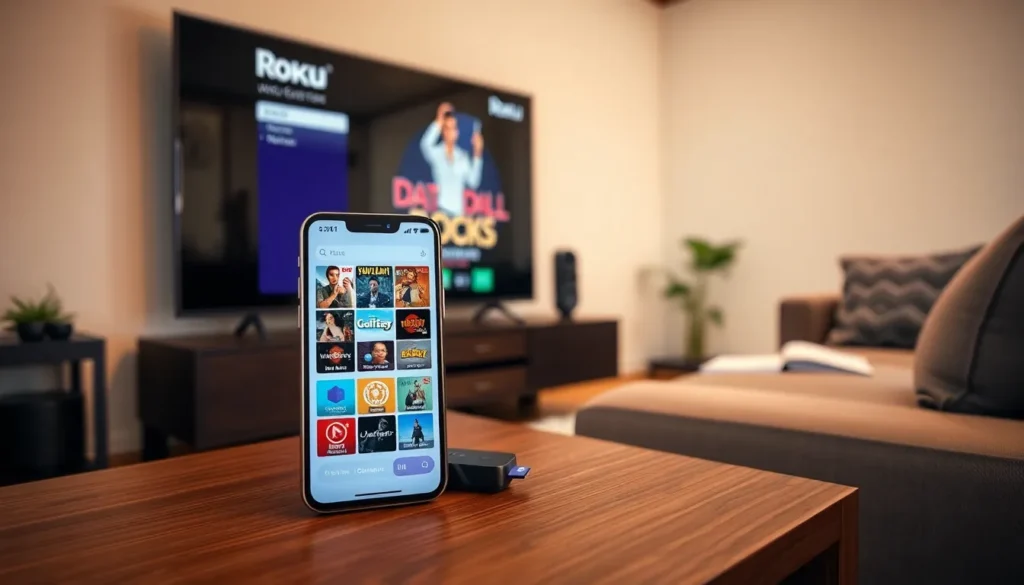
Getting the right preparations in place makes connecting an iPhone to a Roku TV seamless. Follow these steps to ensure everything is set for a smooth experience.
Required Equipment
iPhone users need a few essential items before connecting to Roku TV. A compatible Roku device is necessary, available as a streaming stick or built into the TV. An iPhone with iOS 12 or later is needed for optimal performance. Additionally, a Wi-Fi network is crucial, allowing both devices to communicate effectively. Ensuring that the Roku TV and iPhone are on the same Wi-Fi network strengthens the connection. Finally, having the Roku app installed on the iPhone enhances the overall experience, providing additional control and features.
Ensuring Software Updates
Updating the software on both devices helps maintain connectivity and functionality. Roku TVs receive regular updates, enhancing performance and adding new features. To check for updates, navigate to the settings menu on the Roku TV, select System, and then choose System Update. The iPhone should also be updated regularly to ensure compatibility. Go to Settings, then General, and tap on Software Update to check for the latest iOS version. Keeping both devices updated minimizes potential issues when connecting and ensures access to the latest features and security enhancements.
Connecting Your iPhone to Roku TV
Connecting an iPhone to a Roku TV provides an easy way to enjoy content on a larger screen. Users can choose between screen mirroring and using the Roku app for a seamless experience.
Using Screen Mirroring
Screen mirroring allows the iPhone to display content directly on Roku TV. First, ensure both devices are connected to the same Wi-Fi network. Next, swipe down from the top-right corner of the iPhone screen to access the Control Center. Tap on Screen Mirroring and select the Roku device from the list. Content such as photos, videos, and app screens can then be mirrored directly to the TV. For optimal performance, keep the iPhone and Roku TV within close range of the Wi-Fi router.
Using the Roku App
The Roku app enhances the functionality of Roku TV and offers additional features. Download the Roku app from the App Store, then open it and connect to your Roku device. With the app, users can browse channels, search for shows, and even control the TV from the iPhone. The app also supports streaming content directly from the iPhone to the TV through the Media option, making it easy to share music and videos. Remember to keep the app updated for the best performance and access to new features.
Troubleshooting Connection Issues
Connecting an iPhone to a Roku TV sometimes presents challenges. Identifying and resolving these issues can enhance the streaming experience.
Common Problems and Solutions
One issue users face involves the devices not recognizing each other. Restarting both the iPhone and Roku TV often resolves this issue. Another common problem is the devices being on different Wi-Fi networks. Ensuring both are connected to the same network eliminates this problem quickly. Sometimes, outdated software causes connectivity problems. Updating both the Roku TV and the iPhone to the latest software version ensures compatibility. Users may also encounter lagging or buffering; moving closer to the Wi-Fi router usually helps improve performance.
Tips for a Successful Connection
Ensuring the Roku app is installed on the iPhone is crucial for additional features. Opening the app prior to connecting increases the chances of a smooth experience. Keeping the iPhone’s screen on while mirroring helps maintain a consistent connection. Checking Wi-Fi signal strength is important, as weak signals can hinder performance. Closing unused apps on the iPhone can free up resources and improve functionality. Regularly rebooting the router can also help maintain optimal connectivity.
Connecting an iPhone to a Roku TV opens up a world of entertainment possibilities. With just a few simple steps users can enjoy their favorite shows and movies on a larger screen without any hassle. The combination of screen mirroring and the Roku app offers flexibility and convenience for streaming content directly from the iPhone.
Staying updated and following troubleshooting tips ensures a smooth experience. Whether it’s for a movie night or catching up on a series users can easily enhance their viewing experience with this seamless connection. Embracing this technology not only simplifies the process but also enriches the overall enjoyment of multimedia content.