In a world where everyone’s a budding filmmaker, capturing stunning videos on an iPhone is as easy as pie—if pie were made of pixels and creativity. Whether it’s your cat’s latest stunt or that epic sunset, the iPhone’s video capabilities can turn everyday moments into cinematic masterpieces. But let’s face it: knowing how to hit record isn’t enough to earn you a spot at the Sundance Film Festival.
How To Video Capture On iPhone
Filming on an iPhone requires an understanding of key features. Start by opening the Camera app, which is the primary tool for capturing video. Select the “Video” tab to prepare for recording. Adjust settings such as resolution and frame rate in the app’s settings menu.
Select a well-lit environment for the best visual quality. Consider using natural light or additional lighting to enhance the scene’s appearance. Focus the camera on the subject by tapping on the screen, ensuring clarity. Enable grid lines in the settings to assist with proper framing.
Hold the iPhone steady while filming. For a more dynamic shot, utilize stabilization features or consider using a tripod. Press the red record button to start capturing footage. Speak clearly if dialogue is involved, ensuring audio quality remains high.
Use the zoom feature cautiously, as excessive zoom can lead to a loss of image quality. Take advantage of the built-in slow-motion and time-lapse capabilities for creative effects. Review the video after recording to check for quality and make adjustments if necessary.
Editing tools in the Photos app allow for quick adjustments. Trim unnecessary footage or add filters to enhance visual appeal. Export the final video directly to social media or save it for later use. Utilizing these steps ensures effective video capturing with an iPhone, bringing creativity to everyday moments.
Preparing Your iPhone For Video Capture
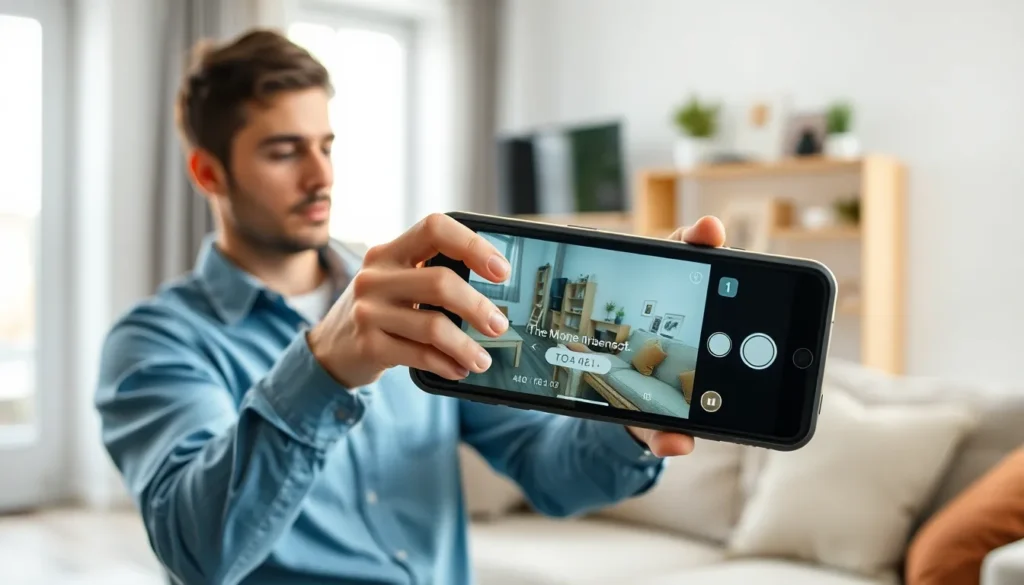
Preparing the iPhone for video capture ensures a smooth recording experience. Several key steps can enhance video quality and storage management.
Checking Storage Space
Checking storage space is essential before capturing high-quality videos. An iPhone typically requires at least 2 GB of free space for a smooth recording of 1080p video at 30 frames per second. To check storage, access Settings, select General, and tap on iPhone Storage. Users should consider deleting unused apps, photos, or messages to free up space. Also, utilizing cloud storage can help offload content and keep the device organized for video projects.
Updating Your iOS
Updating the iOS keeps the iPhone running smoothly, which directly impacts video capture performance. Navigate to Settings, followed by General, and then Software Update to check for available updates. An updated iOS often brings enhancements, fixes bugs, and improves camera functionality. Ensuring the iPhone runs the latest version maximizes compatibility with apps and features, allowing for a better filming experience.
Video Capture Settings
Video capture settings significantly affect the quality of footage. Adjusting these settings before recording enhances the overall visual experience.
Resolution and Frame Rate
Resolution determines the video clarity. The iPhone offers several options, including 720p, 1080p, and 4K. Users can choose 1080p at 30 frames per second for standard recording or 60 frames per second for smoother action. For cinematic effects, 4K recording provides exceptional detail, ideal for filmmaking and viewing on larger screens. Selecting the right frame rate depends on the intended use. Higher frame rates capture fast motion better. It’s essential to balance resolution and storage, as higher settings consume more space. Keeping at least 2 GB of free space allows for smooth recording without interruptions.
Camera Options
The iPhone camera provides multiple modes for diverse filming needs. Options include standard video, slow-motion, and time-lapse. Users should explore each mode to understand their capabilities. Standard video is suitable for everyday shots. Slow-motion allows for capturing quick movements with dramatic effect. Time-lapse condenses prolonged events into short clips, making it great for sunset recordings or busy streets. Additionally, enabling grid lines assists with composition, ensuring balanced framing. Activating various camera settings before filming can substantially improve the final output.
Techniques For Effective Video Capture
Capturing high-quality video requires attention to essential techniques. Prioritizing stabilization and lighting makes a significant difference in the final output.
Stabilizing Your Shot
Using a tripod or gimbal helps maintain stability during filming. Equipped with built-in optical image stabilization, iPhones reduce shaky footage. Holding the device with both hands ensures a steadier shot. Keeping elbows close to the body adds extra support. Engaging the grid lines feature aids in composing shots and balancing scenes effectively. Reducing movement while recording enhances the viewer’s experience. Incorporating these methods results in smoother, more professional-looking videos.
Lighting Considerations
Natural light enhances video quality significantly. Shooting during golden hour improves colors and reduces harsh shadows. Positioning subjects facing the light creates a visually appealing effect. Utilizing soft, diffused light sources, such as lamps or reflectors, minimizes unwanted shadows. Avoiding direct sunlight, which can create overexposed areas, leads to better results. Experimenting with lighting setups helps create a mood or style that resonates with the audience. Overall, great lighting elevates the overall quality of video content.
Editing Your Video After Capture
Editing plays a crucial role in enhancing video quality. Users can refine their footage for a more polished final product.
Using iMovie
iMovie offers a user-friendly interface for quick video editing. Upon opening the app, users can create new projects and import their captured videos. Trimming clips and merging multiple segments becomes simple with the intuitive timeline. Filters and transitions allow for creative enhancements, adding both flair and professionalism. Sharing options within iMovie facilitate easy export to social media platforms.
Other Editing Apps
Several other editing apps enhance video production quality. Apps like Adobe Premiere Rush and Splice provide robust features for mobile editing. Users can crop and adjust colors, ensuring videos match their desired aesthetic. Adding music and voiceovers adds depth to the overall presentation. Many of these apps support HD and 4K editing, maintaining high quality throughout the process. Accessibility and versatility make them excellent choices for video projects.
Capturing high-quality videos on an iPhone opens up a world of creative possibilities. By following the outlined techniques and tips, anyone can elevate their video content from casual recordings to impressive visual stories. With the right settings and a focus on stability and lighting, users can achieve professional-looking results with minimal effort.
Editing plays a vital role in refining footage, and utilizing apps like iMovie or Adobe Premiere Rush can enhance the final product significantly. Whether sharing moments on social media or preserving memories for personal use, the iPhone proves to be a powerful tool for video capture. Embracing these strategies will not only improve video quality but also inspire confidence in every filmmaker’s journey.