Ever found yourself in a situation where you need the Wi-Fi password but can’t remember it? You’re not alone. It’s like being locked out of your own digital paradise, and let’s face it, nobody wants to resort to data overages or those awkward moments of asking your friend for the password again.
Luckily, if you’ve got an iPhone, there’s a way to reclaim your Wi-Fi access without the drama. This guide will walk through the steps to retrieve that elusive password, making you the hero of your own tech tale. So grab your iPhone and get ready to unlock the secrets of your Wi-Fi network—because who doesn’t want to browse the internet without limits?
Understanding Wi-Fi Passwords
Wi-Fi passwords serve as the key to access a wireless network. Each network utilizes a unique password to protect data and prevent unauthorized access. In households, shared passwords allow multiple devices to connect seamlessly. Typically, the password consists of characters, numbers, and symbols.
Retrieving forgotten passwords can feel overwhelming, but certain devices can simplify the process. iPhones store Wi-Fi passwords for networks users have connected to in the past. Accessing these stored passwords can help regain connection without needing to reset the router.
Users can find their Wi-Fi password through the iPhone’s settings or by using iCloud Keychain. When iCloud Keychain syncs, it stores passwords across Apple devices, providing an easy way to access the password anytime. For devices using iOS 16 or later, password retrieval is more straightforward with the Passwords feature.
Being aware of the password’s format often assists in memorization. Familiarity with the structure helps users create memorable combinations. Keeping documentation of passwords in a secure location also supports easier retrieval in the future.
Security plays a critical role in Wi-Fi connections. Regularly updating passwords ensures networks remain secure against potential intruders. Network security settings, aligned with a strong password, significantly enhance protection.
Understanding these aspects of Wi-Fi passwords makes reclaiming internet access simpler. Familiarity with retrieval methods empowers users to handle forgotten passwords with ease. Prioritizing security while using Wi-Fi networks fosters a safe browsing environment.
Accessing Wi-Fi Settings on Your iPhone
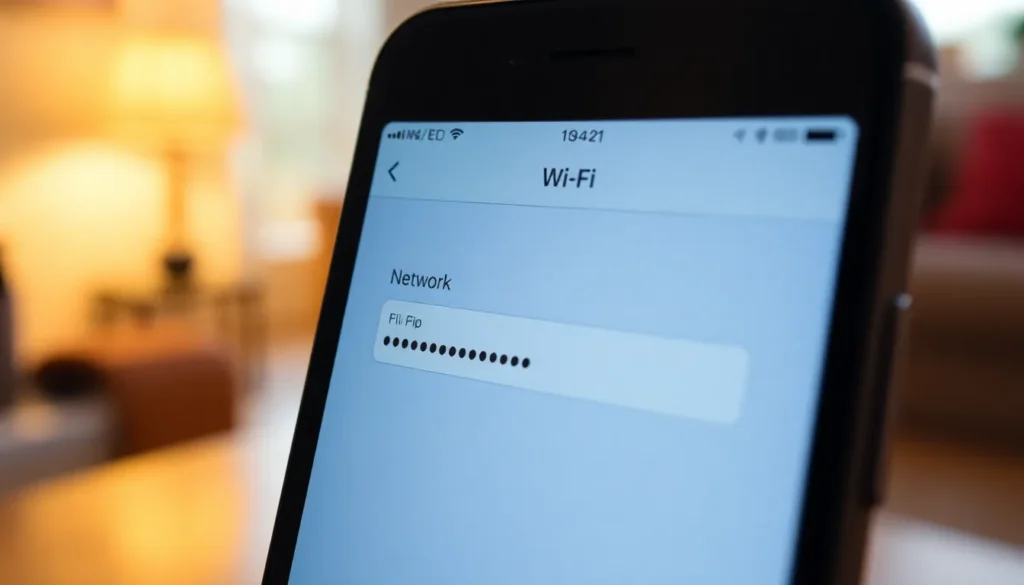
Accessing Wi-Fi settings on an iPhone enables users to manage their connections and retrieve passwords effortlessly. The process is simple and user-friendly.
Finding Your Currently Connected Network
To find the current network, users can navigate to Settings and select Wi-Fi. The screen displays all available networks, with the active one marked with a checkmark. This section shows the connection status, signal strength, and network name. Quick access to this information makes it easy to confirm one’s connection before troubleshooting any issues.
Viewing Passwords for Saved Networks
Viewing passwords for saved networks requires a few more steps. Within the Wi-Fi settings, users can tap on the network name connected. This action reveals additional information, including an option to view the password. On iOS 16 or later, users will see a “Password” field that can be accessed by authenticating with Face ID or Touch ID, providing a secure and straightforward method to retrieve forgotten passwords for previously connected networks.
Using iCloud Keychain
iCloud Keychain simplifies the process of retrieving Wi-Fi passwords. It securely stores and syncs passwords across all Apple devices linked to the same Apple ID.
Syncing Passwords Across Devices
Syncing occurs automatically through iCloud. When a user connects to a new Wi-Fi network on their iPhone, the password saves to iCloud Keychain. All other devices linked to that Apple ID gain access to this password, allowing seamless connections. Users can check this feature by navigating to Settings, selecting [Your Name], and choosing iCloud. Once in iCloud settings, they should confirm that Keychain is enabled. This ensures the syncing process functions correctly. Instant access to Wi-Fi passwords across devices enhances convenience and reduces frustration.
Retrieving Passwords on Mac
Retrieving stored Wi-Fi passwords on a Mac is straightforward. Users begin by opening System Preferences and selecting Passwords. At this point, they need to authenticate using their password or Face ID. Once authenticated, a list of saved passwords appears. Users can search for the desired Wi-Fi network and reveal the password by clicking on the eye icon next to it. This process ensures easy access to previously saved networks without hassle. It’s a practical solution for anyone needing to remember forgotten credentials.
Third-Party Apps for Password Recovery
Various third-party apps assist users in recovering forgotten Wi-Fi passwords on their iPhones. Often, these applications provide additional features that enhance the user experience. Users can explore options like WiFi Passwords and Network Passwords. Both options simplify password retrieval without dealing with complicated settings.
WiFi Passwords typically allows users to scan networks and display stored passwords seamlessly. Compatibility with both iOS and Android devices makes it versatile for users with multiple devices. Network Passwords offers a user-friendly interface, making it easy to find saved Wi-Fi credentials. Feedback shows that many users appreciate these solutions for their simplicity and efficiency.
It’s essential to consider app ratings and reviews before downloading. Checking platforms like the App Store can help ensure the app’s reliability. Remember to read user experiences, especially regarding security and ease of use. Users commonly report positive outcomes when selecting trusted apps.
Our recommendations include apps known for robust security measures. Security features play a crucial role in protecting personal information during password recovery. Some apps encrypt data, adding another layer of protection for sensitive credentials.
Also, keeping the operating system updated enhances app compatibility. Regular updates can prevent issues and ensure smooth operation. Users should check the app’s privacy policy to understand data usage and storage practices.
Using third-party apps adds a layer of convenience when retrieving Wi-Fi passwords. They can serve as a solid alternative for users facing challenges with built-in methods. Choosing the right app makes password recovery straightforward, allowing easy access to saved networks.
Troubleshooting Common Issues
Users may encounter difficulties while trying to retrieve Wi-Fi passwords on their iPhones. Check that the iPhone runs on iOS 16 or later, as access to passwords differs in earlier versions. If the password field doesn’t appear, ensure Face ID or Touch ID is set up properly for authentication.
Connection issues may occur if the iPhone isn’t linked to the network. Confirm the device is connected by going to Settings, then selecting Wi-Fi, where the active connection displays a checkmark.
Network settings may also cause problems. Resetting network settings can resolve issues linked to saved Wi-Fi passwords. To do this, navigate to Settings, then General, and select Transfer or Reset iPhone. After tapping Reset, choose Reset Network Settings, keeping in mind this will erase saved networks.
iCloud Keychain can sometimes have synchronization issues. Ensure that Keychain is enabled in iCloud settings by going to Settings, tapping on the user’s name, selecting iCloud, and ensuring Keychain is turned on.
The iCloud Keychain may not sync if the Apple ID is not the same across devices. Confirm that all devices connected to the Keychain use the same Apple ID.
Third-party apps may also lead to inconsistencies. If using an app for password recovery, users should uninstall and reinstall the application to update any potential glitches. Always check reviews for app reliability and ensure it complies with security standards.
Maintaining updated software on the iPhone enhances overall performance. Regular updates prevent compatibility issues and improve security features when retrieving Wi-Fi passwords.
Retrieving a forgotten Wi-Fi password on an iPhone doesn’t have to be a daunting task. With the right steps and tools at hand users can regain access to their networks quickly and easily. The built-in features of iOS 16 and iCloud Keychain streamline the process making it more efficient than ever.
By following the outlined methods users can confidently manage their Wi-Fi connections and enhance their overall online experience. Emphasizing password security and regular updates ensures a safer browsing environment. With these insights users can tackle any Wi-Fi password challenges that come their way.